


Model Context Protocol (MCP)
Ask your AI assistant questions about Maryland parcels, funding, and community plans — using the same data that powers Compass.
What is this?
The Maryland Community Compass Model Context Protocol connector lets your AI assistant look up Maryland-specific information for you — parcel details, funding programs, zoning rules, and community plans — without leaving your chat window or your editor.
Model Context Protocol (MCP) is an open standard that lets AI assistants talk to outside tools in a safe, predictable way. When you connect Compass, your assistant can call a small set of read-only lookup functions on our server. Nothing on our end is changed by these calls; the assistant is just looking things up.
The connector works with any assistant or agent that supports MCP. This includes Claude Desktop, Claude Code, and other tools that offer a “custom connector” or “MCP server” setting. It is vendor-neutral: any MCP-compatible client can use it.
Connector URL
Whenever a chat app or coding tool asks for the connector URL, use:
That’s the whole address — you don’t need a token, API key, or password. It is served over HTTPS and is available to anyone.
Adding it to Claude (step by step)
Screenshots below walk through the click path for Anthropic’s Claude assistants, since they are a common way people encounter MCP today. Screenshots are from claude.ai; Claude Desktop is nearly identical. Other MCP-compatible chat apps follow a similar shape — see the next section.
-
Open Claude and click the Customize button (toolbox icon) in the left sidebar to open the settings panel.
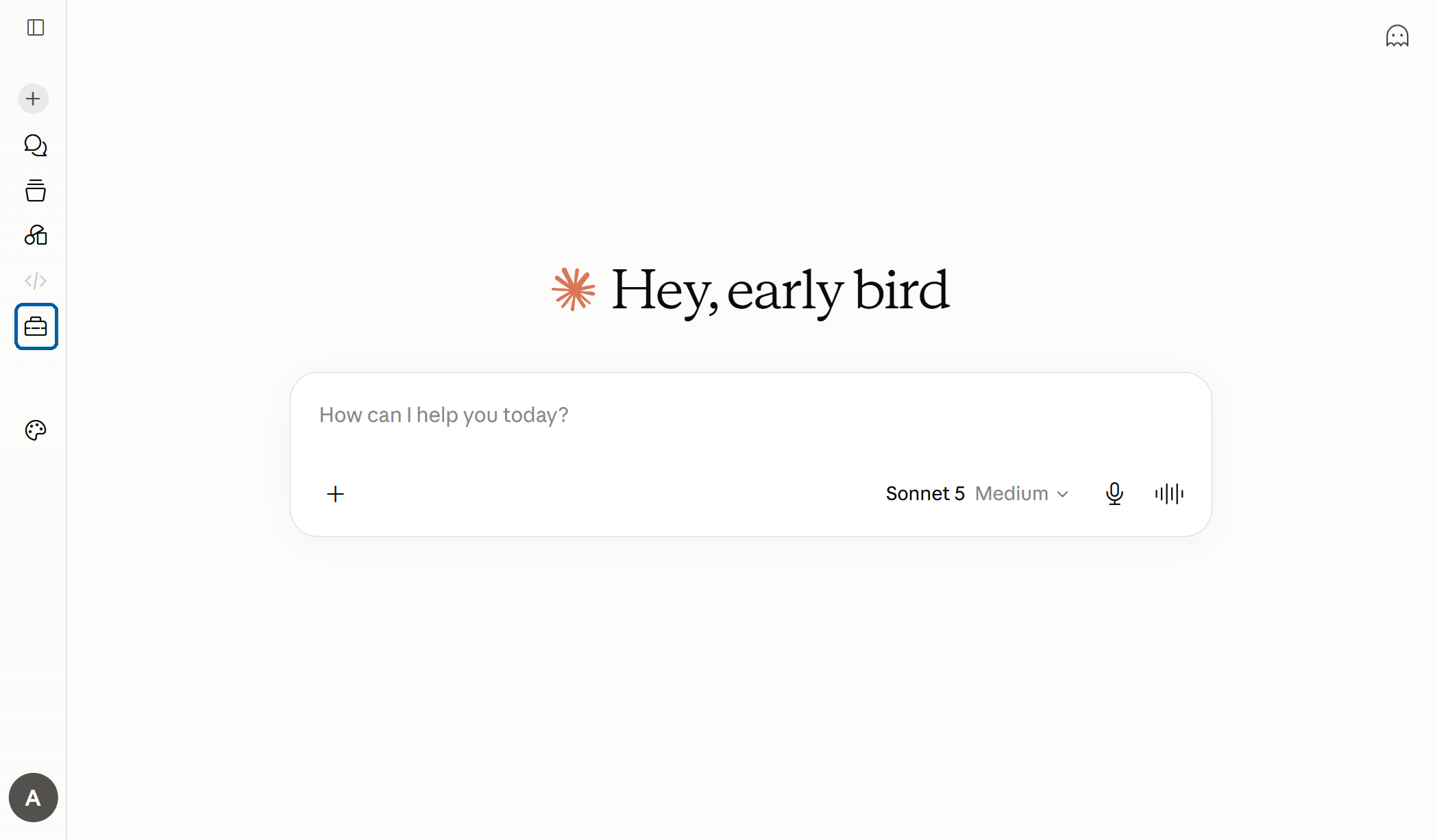
Step 1. Blue-circled Customize button (toolbox icon) in the Claude left sidebar. -
In the settings panel, click Connectors.
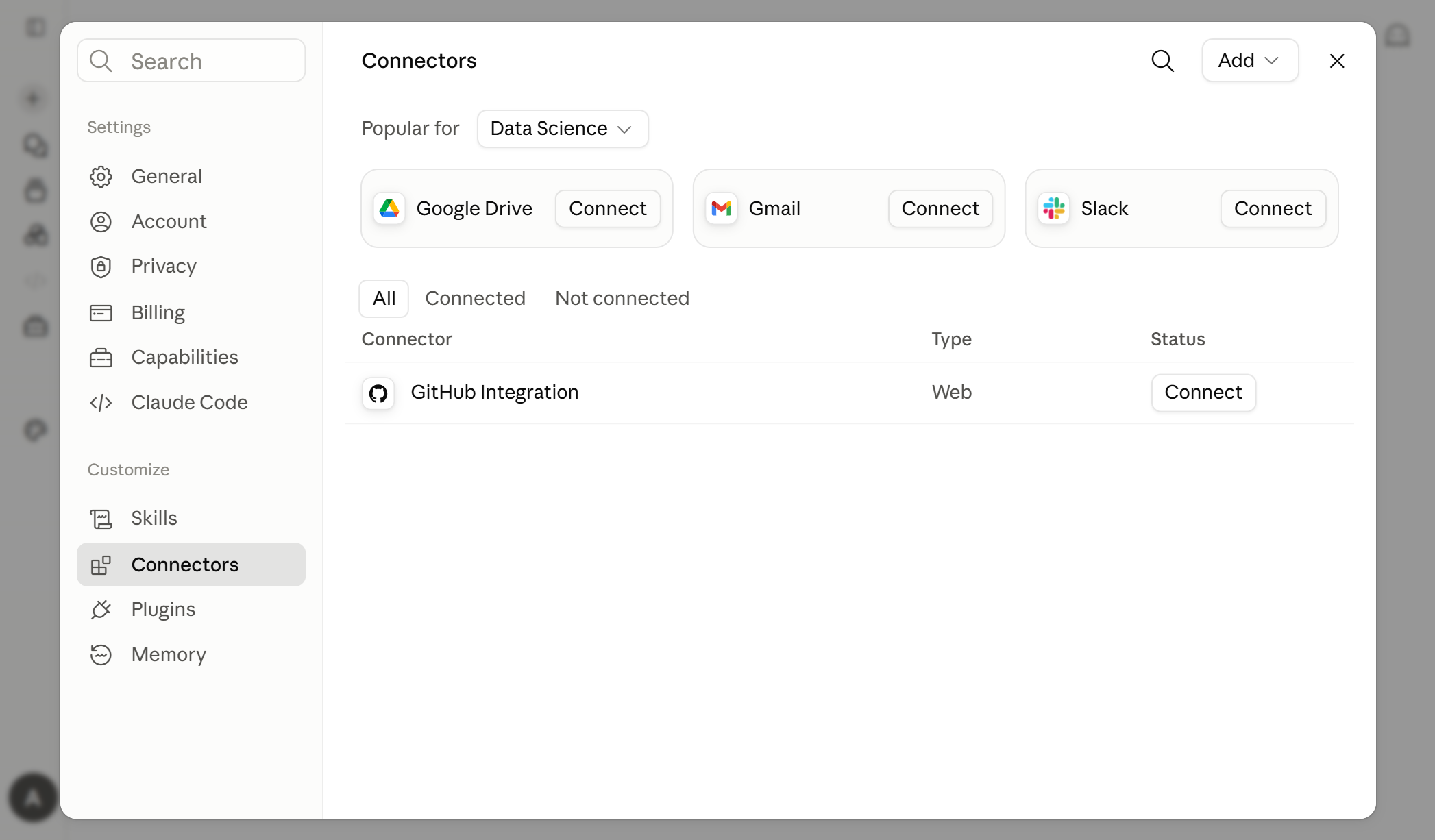
Step 2. The Connectors page in Claude settings. -
In the top-right of the Connectors page, click Add, then Add custom connector.
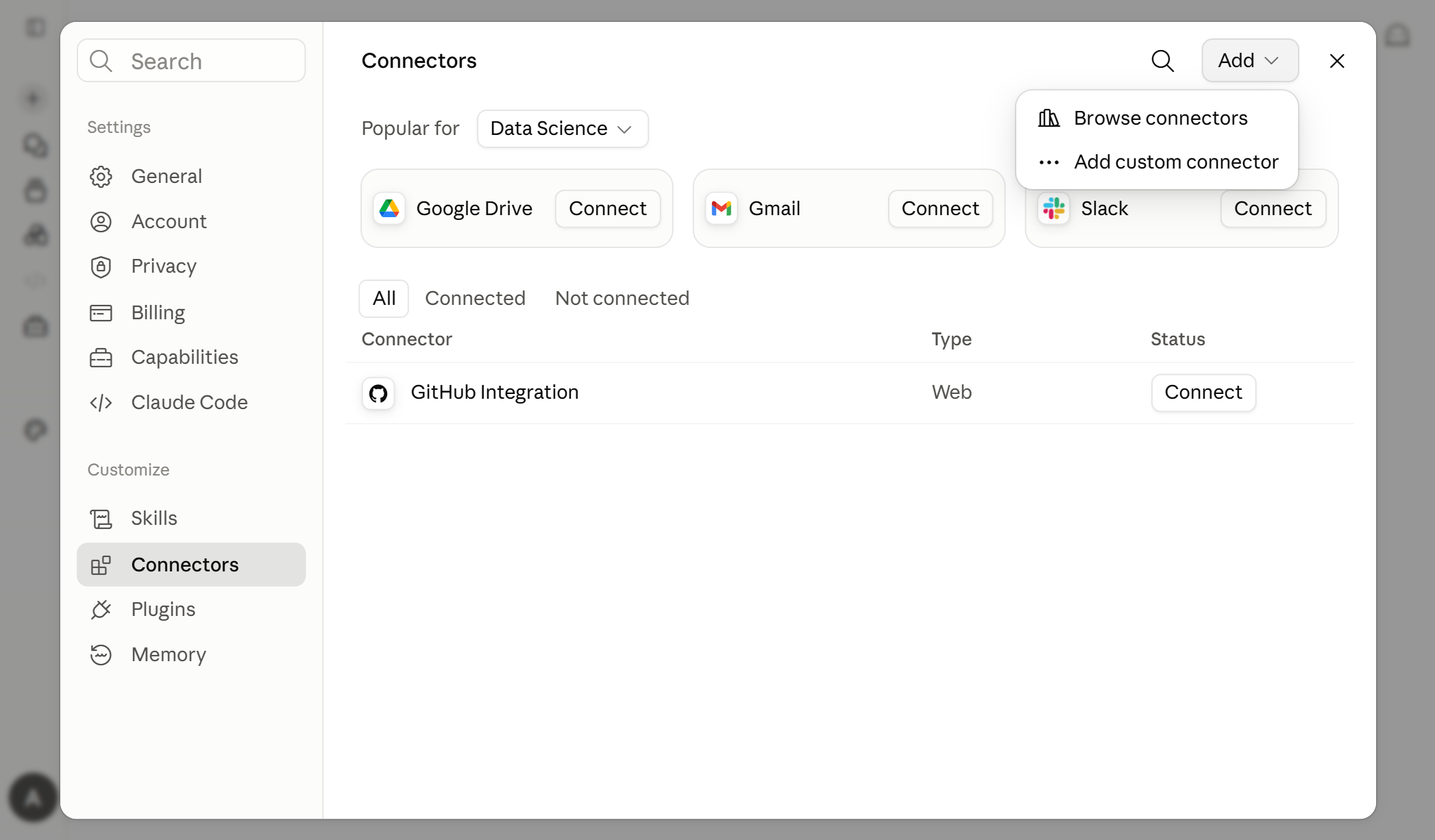
Step 3. Open the Add menu and choose “Add custom connector.” -
In the Add custom connector dialog, enter Maryland Community Compass as the name and https://compass.maryland.gov/mcp/ as the server URL. Leave the OAuth fields empty — the connector is public and read-only. Click Add.
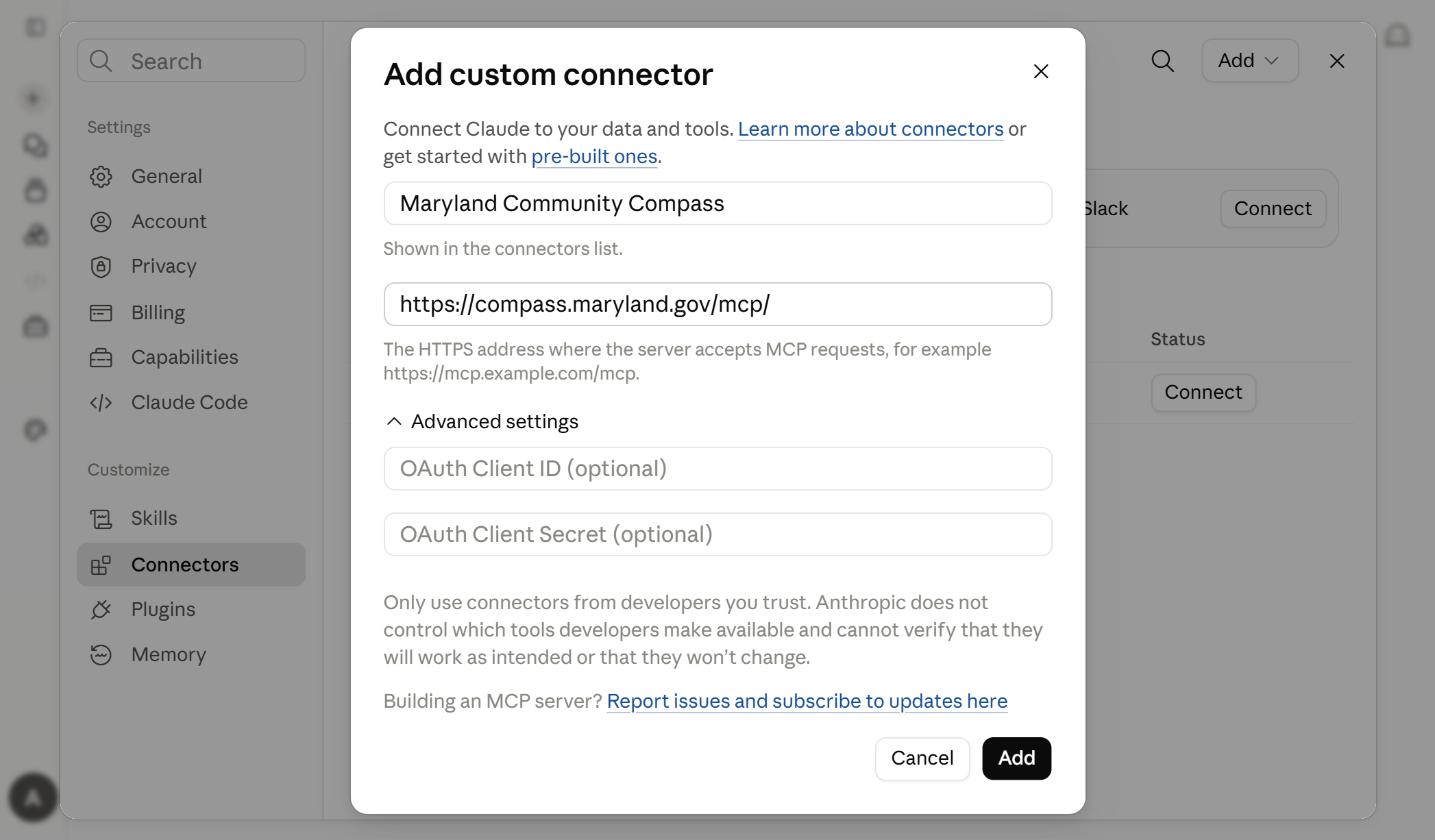
Step 4. Enter the connector name and URL, then click Add. -
You'll land on the new connector's page with the message “You are not connected to Maryland Community Compass yet.” Click Connect.
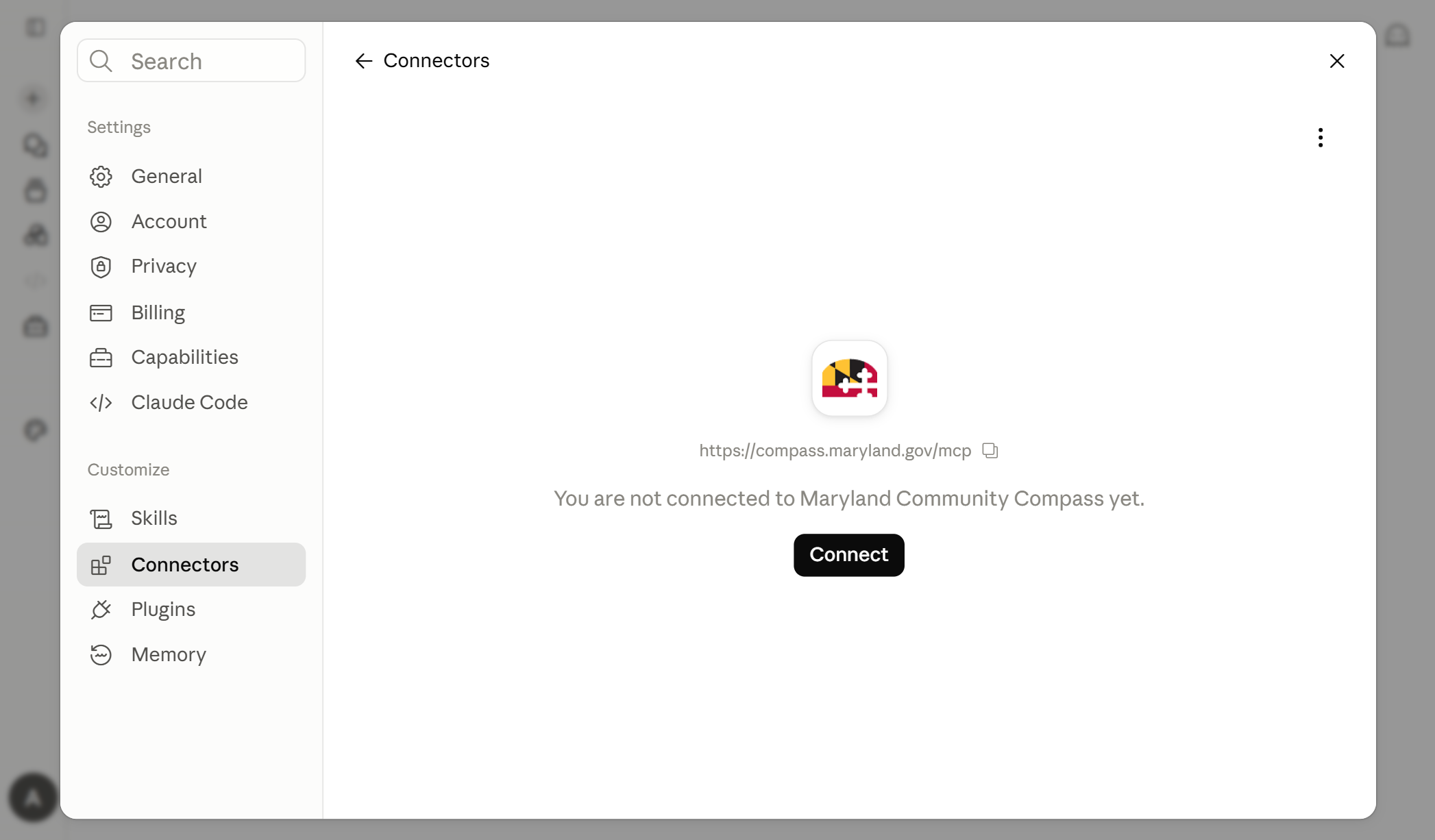
Step 5. Click Connect on the Maryland Community Compass connector page. -
Claude will show a Tool permissions panel listing every Compass tool. For each tool you can choose Always allow, Needs approval, or Blocked. Because every Compass tool is read-only — it fetches data but cannot change anything on Compass — we recommend Always allow for the best experience. That way Claude won't stop mid-conversation to ask permission each time it looks something up. You can use the group-level dropdown next to Read-only tools to set all 20 tools at once.
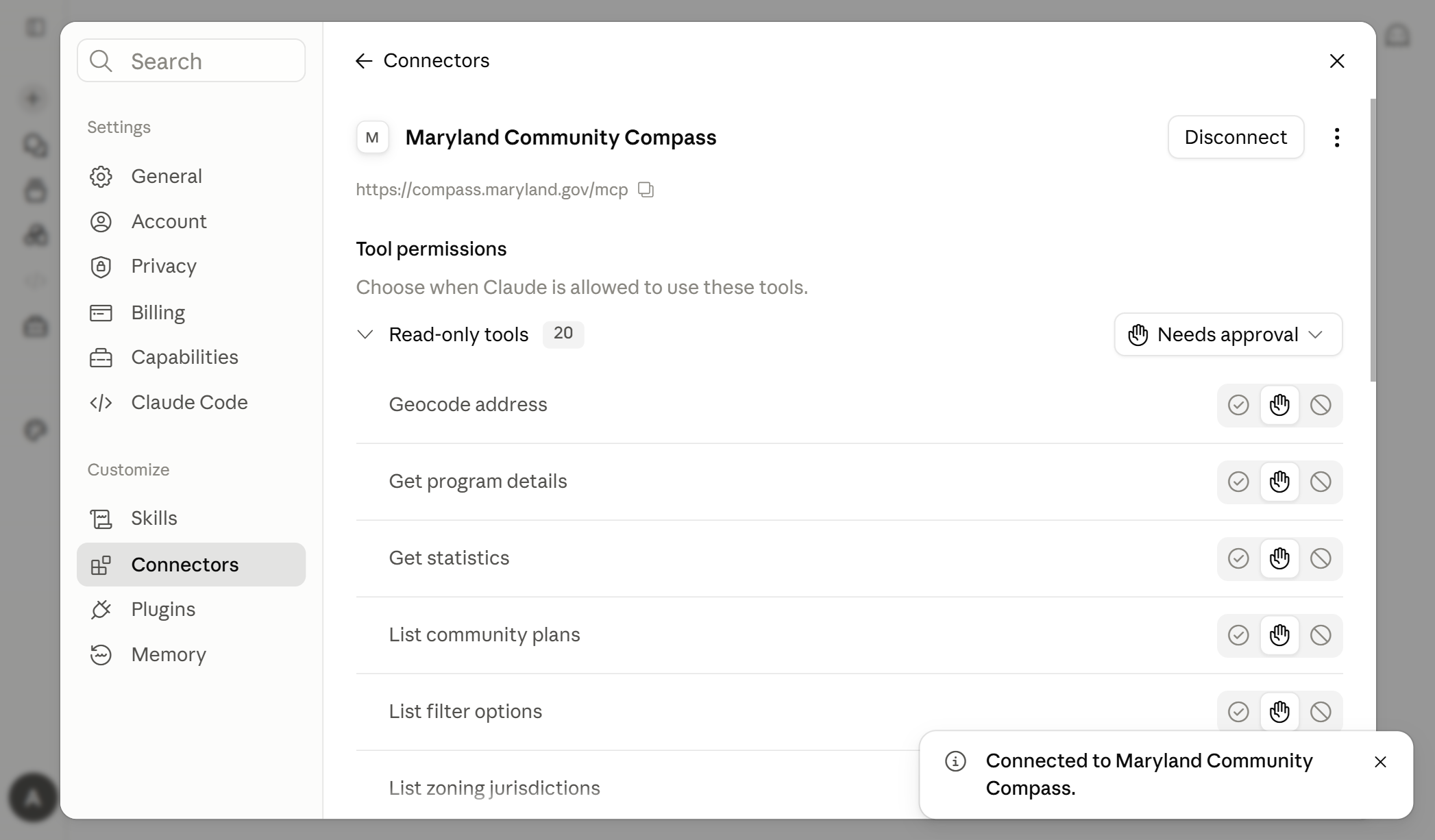
Step 6. Set the group to Always allow for a smoother experience — every Compass tool is read-only.
That's it. Close the settings and return to your chat — try one of the example questions below to confirm the connector is wired up.
Adding it to another chat app (ChatGPT and other UI assistants)
Chat apps other than Claude also expose a “connectors” or “custom tools” page in their settings. The exact wording varies by product, but the shape of the flow is the same.
- Open your assistant’s settings and look for a section named Connectors, Custom connectors, Custom integrations, or MCP servers.
- Choose the option to add a new remote connector, HTTP MCP server, or streaming HTTP MCP server.
- When it asks for a name, enter something recognizable like Maryland Compass.
- When it asks for the server URL, paste https://compass.maryland.gov/mcp/.
- If it asks whether authentication is required, choose None. The Compass connector is public and read-only.
- Save the connector. Your assistant should refresh its tool list and show the Compass tools as available.
Once the connector is added, try one of the example questions below to confirm everything is wired up.
Adding it to a coding tool (Claude Code, Antigravity, and other CLI/IDE agents)
Coding tools and command-line agents also support MCP, though they generally configure connectors through a project file or a shell command rather than a settings panel.
Claude Code
Add the connector with:
claude mcp add --transport http compass https://compass.maryland.gov/mcp/Or edit your project’s .mcp.json file and add an entry:
{
  "mcpServers": {
    "compass": {
      "type": "http",
      "url": "https://compass.maryland.gov/mcp/"
    }
  }
}
Google Antigravity and other CLI/IDE agents
Antigravity and similar agentic coding tools read from a project-level MCP configuration file. The exact filename varies (.mcp.json, mcp.config.json, or a section inside a workspace settings file), but the entry shape is the same as above. Set the transport to HTTP (also called streamable HTTP or remote HTTP) and point it at https://compass.maryland.gov/mcp/.
Do not select the stdio transport — that mode expects to launch a local subprocess, and the Compass connector runs on our servers, not yours.
Direct HTTP clients
Any client that speaks the MCP streamable-HTTP transport can connect. Point it at https://compass.maryland.gov/mcp/. No authentication, no headers required.
What you can ask
Once the connector is wired up, your assistant can answer questions grounded in Maryland data. Typical asks include:
- Site questions. “Look up the parcel at 200 State Circle, Annapolis and tell me its zoning code and assessed value.”
- Development context. “Is this address in an Enterprise Zone or Opportunity Zone? What community plans cover it?”
- Environmental screening. “Are there any brownfield sites or historic properties within a quarter mile of this parcel?”
- Funding discovery. “What state grants exist for a rural childcare center in Garrett County?”
- Neighborhood context. “What are the demographics and permit activity for this census tract compared to the state median?”
- Zoning text. “Show me Baltimore County’s zoning rules on accessory dwelling units.”
You can also just describe what you’re working on in plain language and let the assistant decide which lookups to run.
Examples
Three worked examples showing how the connector fits into a natural conversation. Your assistant will decide on its own which lookups to run — you don’t need to name the tools.
1. Evaluating a possible site
You say“I’m considering opening a bakery at 200 East Lexington Street in Baltimore, Maryland. Can you tell me about the property, its zoning, whether it’s in any special districts, and any environmental or historic concerns nearby?”
What the assistant doesBehind the scenes, the assistant geocodes the address, looks up the SDAT parcel record, checks zoning and incentive-area overlays, and scans for environmental determinations and historic sites within a short radius. It then summarizes the findings: assessed value, zoning classification, whether the address sits inside an Opportunity Zone or Sustainable Community, and whether any Maryland Historical Trust listings or MDE Land Restoration Program sites appear nearby.
2. Finding funding for a specific profile
You say“I’m a veteran-owned small manufacturing business in Baltimore City looking to expand hiring. What state and local programs might help?”
What the assistant doesThe assistant runs a profile-based recommendation against the Maryland incentive database using the geography (Baltimore City), industry (manufacturing), and demographic (veteran-owned business) you mentioned. It returns a ranked list of grants, loans, tax credits, and training programs that match, with a short explanation of why each was suggested. You can follow up with “tell me more about the second one” and the assistant will pull the full program details — eligibility, deadlines, application steps.
3. Reading a comprehensive plan
You say“What does Anne Arundel County’s comprehensive plan say about transit-oriented development around the Odenton MARC station?”
What the assistant doesThe assistant locates the relevant Anne Arundel comprehensive plan, searches its full text for passages about Odenton and transit-oriented development, and returns direct quotes with a link back to the source PDF. You can ask follow-up questions and the assistant will keep pulling the plan’s language rather than paraphrasing from general knowledge.
Full tool list
These are the individual lookup functions your assistant has access to when the connector is enabled. Every tool is read-only: it fetches or searches data, and cannot change anything on Compass.
Site & parcel lookups
| Tool | What it does |
|---|---|
| geocode_address | Turns a Maryland street address into a latitude/longitude and identifies the county. Addresses are resolved against our SDAT parcel index first; non-parcel addresses (roads, landmarks, civic addresses) fall through to Maryland iMap at mdgeodata.md.gov. Both paths are Maryland state infrastructure. See the MCP Privacy Policy for details. |
| lookup_parcel | Returns SDAT parcel data at a latitude/longitude: assessed values, zoning code, acreage, sale history, and utility service. |
| lookup_zoning_and_context | Returns the parcel’s zoning classification plus every Maryland incentive-area overlay it sits inside (Enterprise Zone, Opportunity Zone, Sustainable Community, and about 16 others), along with overlapping community plans. |
| lookup_environmental | Returns nearby Maryland Department of the Environment sites (Brownfields, Voluntary Cleanup Program, NPL, wetlands, tidal buffers). |
| lookup_historic | Returns nearby historic-register entries from the Maryland Historical Trust inventory. |
| lookup_vacancy_notices | Baltimore City only. Returns active Vacant Building Notices on or near the point. |
| lookup_natural_resources | Returns nearby Maryland DNR Conservation Easements and Green Infrastructure areas. |
| lookup_neighborhood_indicators | Returns 40+ census-tract-level indicators (population, permits, real estate, economic growth) with state and county medians for comparison. |
Funding programs
| Tool | What it does |
|---|---|
| search_funding | Full-text and faceted search across Maryland state and local government incentive programs. Understands common Maryland acronyms (MEA, DHCD, TEDCO, SSBCI, LIHTC). |
| recommend_programs | Given a structured profile (industry, county, business stage, demographics), returns the incentive programs that fit best, ranked by match strength. |
| get_program_details | Returns full details on one program: eligibility, application process, deadlines, contact info, requirements. |
| list_filter_options | Enumerates valid filter values (agencies, counties, industries, org types, and more) that can be passed to search_funding. |
| get_statistics | Program-count breakdowns across categories — useful when the assistant needs to answer questions like “how many grants target agriculture?” |
Zoning ordinances
| Tool | What it does |
|---|---|
| list_zoning_jurisdictions | Lists every Maryland jurisdiction whose zoning ordinance is loaded on Compass. |
| list_zoning_sections | Lists every section within one jurisdiction’s ordinance. |
| read_zoning_section | Returns a slice of one ordinance section’s markdown. Pair with an offset from search_zoning_text and a small max_chars to read a narrow window around a match. |
| search_zoning_text | Full-text search across one jurisdiction’s ordinance chunk index — each hit carries an offset for a windowed read. Best used with 3–5 short, angle-varying queries. |
Community plans
| Tool | What it does |
|---|---|
| list_community_plans | Returns the comprehensive and community plans that cover a lat/lng, or the nearest plans if none contains the point. |
| read_community_plan | Returns a slice of one plan’s markdown. Pair with an offset from search_community_plan_text and a small max_chars to read a narrow window around a match. Response carries an absolute PDF URL for citation. |
| search_community_plan_text | Full-text search across one plan’s chunk index — each hit carries a match offset for a windowed read. Best used with 3–5 short, angle-varying queries (goals, priorities, strategies). |
Privacy & terms
The Compass MCP server is deliberately narrow in what it sees and what it keeps. It receives only the specific lookup arguments your assistant sends (an address, a search term, a program slug); it does not receive the surrounding conversation you’re having with your assistant. It does not associate requests with an account, does not maintain server-side memory of prior calls, and does not keep a long-term record of the questions asked.
Your assistant may have its own privacy policy that covers how it logs your conversation and any tool calls it decides to make; the State of Maryland is not the operator of your assistant and cannot speak to how that vendor handles your data. Please review your assistant vendor’s policy before connecting it to any external tool.
Full details are covered in the MCP Server Privacy Policy, including what we log, which third-party services we invoke, our one-year retention on aggregate analytics, and our no-profiling/no-training commitment. Terms of use for the MCP server live in Section 9 of the Website Terms of Service.
Getting help
If the connector isn’t working, the first thing to check is that your MCP client is pointing at the exact URL, including the trailing slash:
If you’re still stuck, or you have questions about the tools, our data, or a specific answer your assistant gave, email compass@maryland.gov and we’ll follow up.
Compass data is sourced from a mix of state, federal, and third-party providers — see the Methodology page for the full list. Answers from the MCP connector are subject to the same accuracy caveats as the rest of Compass; verify any material fact, program detail, deadline, or eligibility criterion against the original source before acting on it.